
Git Reflog Explained: Recover Deleted Commits & Lost Work

Have you ever run:
git reset --hard HEAD~1…and suddenly your latest commit disappeared?
Or rebased the wrong branch?
Or force pushed and thought:
“That’s it. It’s gone.”
Before you panic — Git has a hidden safety net.
It’s called reflog.
Most developers don’t know about it until disaster strikes. And when it does, reflog feels like magic.

This guide will show you:
- What Git reflog actually is
- Why it exists
- How it differs from git log
- How to recover deleted commits
- How to undo a hard reset
- How to fix a bad rebase
- What its limitations are
- And how to use it safely in real-world workflows
This is not beginner Git.
This is Git survival training.
What Is Git Reflog?
Let’s simplify this.
Git keeps two types of history:
Project History
This is what you see when you run:
git logIt shows the commit history of your project.
Reference History (Reflog)
This is what you see when you run:
git reflogReflog does NOT show your project history.
It shows:
The history of where your HEAD has been.
That’s the key.
What Does That Mean?
Every time you:
- Commit
- Checkout a branch
- Reset
- Rebase
- Merge
- Amend a commit
Git moves a pointer called HEAD.
Reflog records every movement of that pointer.
Even if commits disappear from git log.
Even if branches are deleted.
Even if history is rewritten.
Reflog remembers.
Why Reflog Exists
Git allows powerful history rewriting:
git resetgit rebasegit commit --amendgit cherry-pick
These commands can change history.
But rewriting history can be dangerous.
So Git keeps a local safety journal.
That journal is reflog.
It’s like:
A black box recorder for your repository.
Even if you crash your branch, reflog often knows where you were before.
A Real Disaster Scenario
Let’s say you’re working on a feature.
You make three commits:
Commit A
Commit B
Commit C
Then you run:
git reset --hard HEAD~1Now commit C is gone.
Run:
git logYou don’t see it anymore.
Panic begins.
But then:
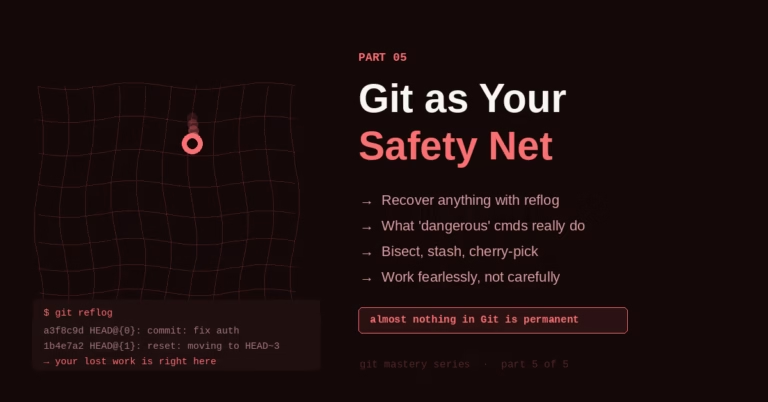
git reflogYou see something like:
abc1234 HEAD@{0}: reset: moving to HEAD~1
def5678 HEAD@{1}: commit: added validation logic
There it is.
Your lost commit.
Reflog still remembers.
Understanding git reflog Output
Run:
git reflogYou’ll see output like:
a1b2c3d HEAD@{0}: commit: updated login form
d4e5f6g HEAD@{1}: checkout: moving from feature to main
h7i8j9k HEAD@{2}: commit: added login feature
Let’s decode this.
HEAD@{0}
Current position.
HEAD@{1}
Previous position.
HEAD@{2}
Position before that.
It’s a timeline of HEAD movements.
Not commits.
Movements.
This distinction matters.
How to Recover a Lost Commit (Step-by-Step)
Let’s go practical.
Scenario: You Ran git reset --hard
You accidentally removed your last commit.
Step 1: Check reflog
git reflogFind the commit before the reset.
Example:
abc1234 HEAD@{0}: reset: moving to HEAD~1
def5678 HEAD@{1}: commit: add payment logic
You want def5678.
Step 2: Restore It
You have two main options.
Option 1 – Hard Reset Back
git reset --hard def5678This moves your branch back to that commit.
Your lost work is restored.
Option 2 – Checkout as Detached HEAD
git checkout def5678This lets you inspect the commit first.
Safer if you’re unsure.
Reflog vs Log (Critical Difference)
This confuses many developers.
git log
Shows commit history of the branch.
git reflog
Shows local HEAD movement history.
Important:
- Reflog is LOCAL.
- It is NOT pushed to GitHub.
- It exists only on your machine.
If your teammate deletes something and force pushes — your reflog won’t know.
Reflog protects you locally.
A Practical 101 Guide to Finding Bugs Using Git (Not Guessing)
Recovering a Deleted Branch
Let’s say you delete a branch:
git branch -D feature-xGone.
But you recently worked on it.
Run:
git reflogFind the commit where you last worked on that branch.
Then recreate it:
git branch feature-x <commit-hash>Branch restored.
Fixing a Bad Rebase
Rebases are powerful.
They’re also dangerous.
Scenario:
You rebase the wrong branch.
You squash incorrectly.
You lose commits.
Reflog shows:
HEAD@{3}: rebase finished
HEAD@{4}: commit: before rebase
To undo:
git reset --hard HEAD@{4}You’re back before the rebase.
How Long Does Reflog Keep Data?
By default:
- 90 days for normal entries
- 30 days for unreachable commits
After that, entries expire.
You can check configuration:
git config --get gc.reflogExpireYou can change it if needed.
But don’t rely on reflog forever.
If something is important — restore it immediately.
When Reflog Will NOT Save You
Reflog is powerful.
But not magic.
It will NOT help if:
- You deleted your entire
.gitfolder - The repository was freshly cloned after deletion
- Garbage collection permanently removed objects
- You never committed the changes
Reflog only tracks committed states.
Uncommitted changes?
Use stash or commit early.
Best Practices for Using Reflog Safely
Here’s what professionals do:
✔ Commit Often
Small commits = easier recovery.
✔ Don’t Panic Immediately
Run git reflog before doing anything else.
✔ Inspect Before Hard Reset
Use git checkout <hash> to inspect first.
✔ Avoid Force Push Unless Necessary
Reflog is local. Force push can hurt team history.
✔ Understand HEAD Movement
Reflog tracks pointer movement, not just commits.
Mental Model That Makes Reflog Easy
Think of Git as:
- Commits = snapshots
- Branch = pointer
- HEAD = active pointer
- Reflog = movement diary
When things go wrong,
You rewind the diary.
Simple.
Advanced Tip: Using HEAD@{n}
You don’t even need commit hashes sometimes.
You can do:
git reset --hard HEAD@{2}That moves your branch back two HEAD movements.
Quick and powerful.
But be careful.
Always inspect first if unsure.
A Complete Real-World Recovery Story
You’re working late.
You squash commits.
You amend.
You rebase.
Then suddenly — feature broken.
Commits missing.
You run:
git logNot there.
You breathe.
Run:
git reflogYou see:
HEAD@{5}: commit: working version before cleanupYou reset:
git reset --hard HEAD@{5}Project restored.
You push.
All good.
That’s reflog in action.
Why Every Developer Should Know Reflog
Because mistakes happen.
Even seniors:
- Reset wrong branch
- Rebase wrong base
- Delete wrong branch
- Amend wrong commit
Reflog turns disaster into inconvenience.
Final Recap
Here’s your recovery workflow:
- Something breaks
- Stop
- Run
git reflog - Find correct HEAD position
- Reset or checkout
- Continue calmly
Reflog is not advanced magic.
It’s a safety net.
And once you understand it, Git becomes far less scary.
You love watching instead of reading.
Final Thought
Most developers only learn reflog after losing work.
Now you know it before disaster.
And that changes how confidently you use Git.
Because once you understand reflog, you’re no longer afraid of rewriting history.
You’re in control of it.




One Comment