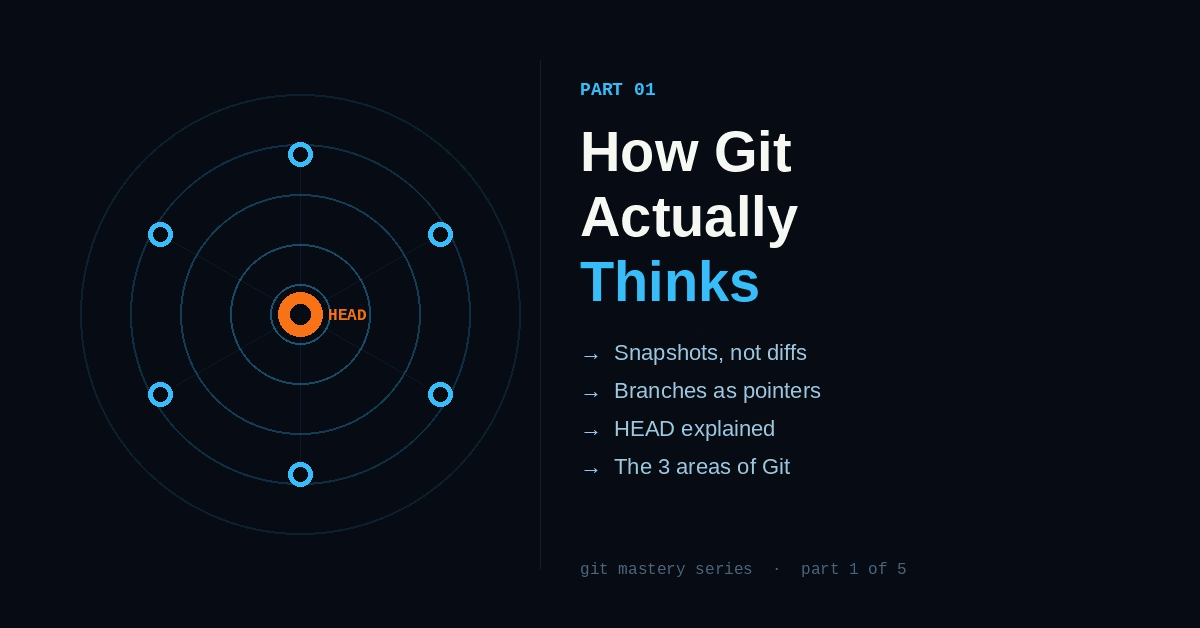
How Git Actually Thinks (And Why Most Developers Have It Wrong)

Part 1 of the Git Mastery Series
Here’s a conversation that happens on every development team, roughly once a month:
Someone runs git reset --hard when they meant something else. Or they rebase and the history looks completely wrong. Or they merge a branch and can’t figure out why certain changes didn’t come through. And then they type something into a chat: “I think I broke Git.”
You can’t break Git. But you can absolutely confuse yourself when you’re working with a mental model that doesn’t match what Git is actually doing.
Most Git tutorials teach you commands. Very few teach you how Git thinks. That’s the gap this article closes — because once the model clicks, the commands stop being incantations you copy from Stack Overflow and start being decisions you make intentionally.
What We’re Covering
Git Doesn’t Store Diffs. It Stores Snapshots.
This is the most important thing to understand about Git, and it’s the thing most tutorials either skip or bury in chapter 10.
When you run git commit, Git does not store “what changed since last time.” It stores a complete snapshot of every tracked file in your project at that moment. If a file didn’t change, Git doesn’t duplicate it — it just points to the same content from the previous snapshot. But conceptually, each commit is a full picture of your project, not a list of changes.
Why does this matter? Because it explains almost everything that confuses people.
When you cherry-pick a commit, Git isn’t “moving” changes — it’s applying the diff between that commit and its parent onto your current state. When you rebase, Git isn’t “moving commits” — it’s replaying a series of diffs on top of a new base. When you reset, you’re moving a pointer to a different snapshot. Nothing is actually deleted until Git’s garbage collector runs.
This is why Git is so powerful — and why operations that sound destructive usually aren’t.
The Three Places Your Code Lives
Before any command makes complete sense, you need to know about Git’s three areas:
The Working Directory is your actual files — what you see in your editor, what you can run and test. Git is aware of this area but doesn’t manage it directly.
The Staging Area (Index) is where you prepare your next commit. When you run git add, you’re not committing anything — you’re moving changes into a waiting room, saying “include this in the next snapshot.”
The Repository (.git folder) is where commits live permanently. When you run git commit, Git takes whatever is in the staging area and wraps it into a new snapshot.
The reason this matters: most developers use git add . and git commit -m as a single motion, without thinking about the staging area at all. That works fine until you need to commit part of a file, undo only part of your changes, or figure out why your commit contains something you didn’t intend. At that point, the model saves you.
# See the difference between all three areas at once
git diff           # Working directory vs staging area
git diff --staged  # Staging area vs last commit
git status         # Overview of all three areas
Run these after making some changes. Read the output carefully. You’ll immediately see which changes are “in limbo” and which are committed.
Branches Are Just Pointers. That’s It.
A Git branch sounds like a complex thing — a parallel universe of code, a separate track of development. The implementation is almost comically simple: a branch is a text file containing a 40-character commit hash.
That’s it. A branch is a pointer to a commit. When you make a new commit on a branch, the pointer moves forward to the new commit. When you create a branch, Git copies that pointer to a new file. There’s no copying of code. No parallel universe. Just a pointer.
# See exactly what a branch is
cat .git/refs/heads/main
# Output: a3f8c9d1e2b4f6a8c0d2e4f6a8b0c2d4e6f8a0b2
That hash is your entire branch. The branch name is just a human-readable alias for that commit.
This understanding has real consequences. Creating a branch is free — it’s instantaneous because you’re just writing a file. Switching branches is fast because you’re just moving a pointer and updating your working directory to match the target snapshot. “I’ll create a branch for this” should never feel like a heavy decision.
HEAD: The Thing That Knows Where You Are
HEAD is one file. It contains either a branch name or a commit hash. It answers one question: “Where am I right now?”
When you’re on the main branch and you run git log, you see the history of main because HEAD points to main, which points to its latest commit. When you commit, HEAD moves forward automatically.
cat .git/HEAD
# Output: ref: refs/heads/main
When HEAD contains a branch name, you’re in normal mode. When HEAD contains a commit hash directly — not a branch name — you’re in “detached HEAD” state. This sounds alarming and isn’t. It just means you’re looking at a specific commit in history rather than a branch. Make commits in this state and they’ll eventually be garbage collected, because no branch pointer moves with you. To keep work done in detached HEAD, create a branch: git switch -c my-new-branch.
How Commits Are Actually Connected
Every commit (except the very first) points to its parent. That’s how Git knows what “came before.” A commit is an object containing:
- A pointer to a snapshot (tree)
- A pointer to the parent commit(s)
- The commit message
- Author and timestamp
# See the raw contents of any commit
git cat-file -p HEAD
# Output:
# tree 8a3f2d9c...
# parent 1b4e7a2f...
# author Shakil <email> 1709123456 +0530
# committer Shakil <email> 1709123456 +0530
#
# feat(auth): add OTP login
The chain of parent pointers is your history. When you run git log, Git starts at HEAD and follows the parent chain backward. When you run git merge, Git finds the common ancestor by walking backward through both chains.
This is why Git operations that seem magical — finding merge conflicts, showing blame, running bisect — are actually mechanical. Git is just traversing a linked list.
Why “I’m Afraid of Breaking Things” Happens
Most Git anxiety comes from not knowing what’s recoverable.
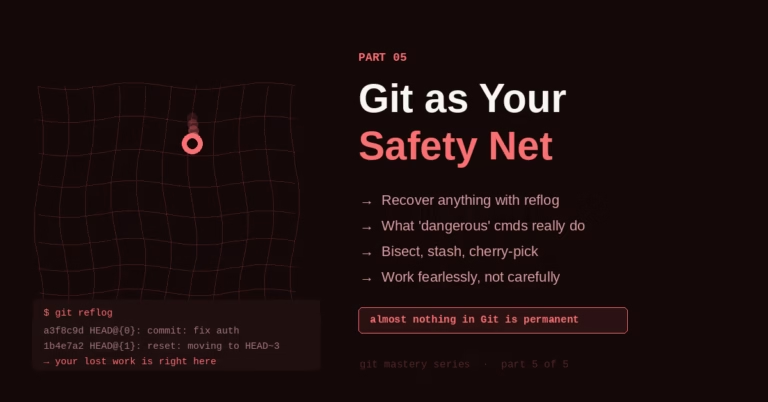
Here’s the truth: almost everything is recoverable. Commits don’t get deleted when you reset — they become unreferenced. They still exist in the .git folder. git reflog shows every position HEAD has ever been at, including commits that no branch currently points to. You have a roughly 90-day window to recover anything before garbage collection runs.
# See everything HEAD has ever pointed to
git reflog
# Output shows a trail of everywhere you've been:
# a3f8c9d HEAD@{0}: commit: fix login bug
# 1b4e7a2 HEAD@{1}: reset: moving to HEAD~1
# c5d2f8a HEAD@{2}: commit: add OTP login
The commit you “deleted” with git reset --hard? It’s at HEAD@{1}. Restore it with git reset --hard HEAD@{1}.
The mental shift this creates: Git operations stop feeling like you’re working with fragile things that can break. You’re working with a database of snapshots, and the pointer that shows you the current view is just one of many pointers. Move it around freely. Almost nothing is permanent until you push — and even then, with force-push access, most things are recoverable.
The Mental Model in One Paragraph
Git is a database of snapshots. Each snapshot (commit) knows its parent. Branches and HEAD are just pointers into this database — they tell you where “now” is, and they move when you make commits. The working directory is your view of one snapshot. The staging area is where you compose the next one. When you understand that commits are permanent, branches are moveable, and HEAD is just your current position — Git stops being a collection of scary commands and starts being a tool you can reason about.
Everything else in Git is built on this. Every command is an operation on snapshots, pointers, or the three areas. The commands that confuse people — rebase, reset, cherry-pick, reflog — all make immediate sense once you can picture what they’re doing to the graph.
What to Actually Practice
Open a project — even a test folder with a few files — and spend twenty minutes doing these things while reading the output carefully:
git init
echo "hello" > file.txt
git status                    # See untracked file
git add file.txt
git status                    # See staged file
git commit -m "first commit"
git log --oneline             # See the commit
git branch feature            # Create branch
cat .git/refs/heads/feature   # See it's just a hash
cat .git/HEAD                 # See where you are
git switch feature
cat .git/HEAD                 # Notice HEAD changed
echo "world" >> file.txt
git diff                      # Working directory vs staging
git add file.txt
git diff                      # Nothing — it's staged
git diff --staged             # Staging vs last commit
git commit -m "add world"
git log --oneline --all --graph  # See the branch split
None of this is complicated. But doing it with intention — reading each output, understanding what changed and why — builds the mental model faster than reading any number of tutorials.
Next: Part 2 — Committing with Intention: The Art of a Good Commit →
If this was useful, I turned the whole series into a 23-page PDF reference — checklists, hook templates, 80+ commands, reflog & bisect deep-dives, and a recovery playbook for 12 real emergencies.


4 Comments