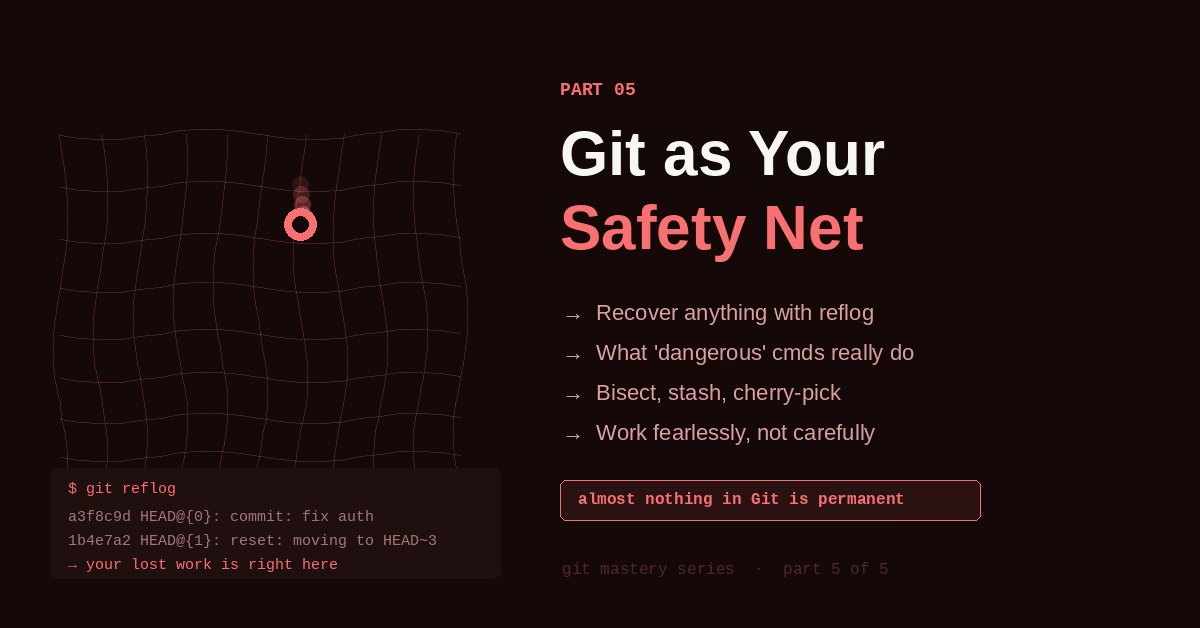
Git as Your Safety Net: The Confidence to Work Fearlessly

Part 5 of the Git Mastery Series
← Part 4: Collaboration That Doesn’t Create Chaos
By the time most developers reach this level of Git knowledge, they’ve already had the experience that makes everything click.
Maybe they ran git reset --hard and thought they lost a day’s work. Maybe they deleted a branch too early. Maybe a rebase went sideways and they couldn’t figure out how to get back to where they started. Maybe they pushed directly to main and spent an hour trying to undo it.
Those moments are terrifying when you don’t know about Git’s safety nets. Once you do, they become inconveniences — things you recover from in five minutes rather than crises.
This part isn’t about new commands to memorize. It’s about changing your relationship with Git entirely — from treating it as something to be careful around to using it as the thing that makes you less careful, because you know you can recover from almost anything.
What We’re Covering
Nothing Is Permanent Until the Garbage Collector Runs
Here’s the most liberating thing to understand about Git: deleting a commit doesn’t delete it.
When you run git reset --hard HEAD~3, you’re moving the branch pointer backward three commits. The three commits you “deleted” are still in the object store. They still exist as objects in the .git folder. They’re just not pointed to by any branch anymore.
Git’s garbage collector (git gc) runs automatically every few hundred operations or when you explicitly call it. It works in two stages: the reflog keeps a record of every position HEAD has been at for 90 days by default — that’s your primary recovery tool.
But once a commit falls out of the reflog (no branch or reflog entry points to it), unreachable objects are pruned within about 2 weeks, not 90 days. In practice, anything you’ve committed recently is safe — but don’t wait weeks before trying to recover a lost commit.
This means: you can be bold. Try risky rebases. Reset commits. Delete branches. Move things around. The cost of being wrong is usually five minutes of recovery, not lost work.
Reflog: Git’s Black Box Recorder
git reflog is the command that has saved more careers than any other.
Every time HEAD moves — every commit, checkout, rebase, reset, merge, cherry-pick — Git records it in the reflog. This is completely separate from your commit history. It’s a log of every position HEAD has ever been at, including states that no longer have a branch pointing to them.
git reflogOutput:
a3f8c9d HEAD@{0}: commit: fix(auth): handle null token on refresh
1b4e7a2 HEAD@{1}: rebase (finish): returning to refs/heads/feature/auth
9c4d2e1 HEAD@{2}: rebase (pick): feat(auth): add OTP verification
7a5b3f8 HEAD@{3}: rebase (pick): feat(auth): add login endpoint
2e8d1c4 HEAD@{4}: checkout: moving from main to feature/auth
f3a9b7e HEAD@{5}: reset: moving to HEAD~3
8d2c5a1 HEAD@{6}: commit: add debug logging
See that HEAD@{5} — a reset: moving to HEAD~3? Those three commits you “deleted” are still accessible. HEAD@{6} is one of them. You can get back to that state:
# Recover from that reset
git reset --hard HEAD@{6}
# Or create a branch from that lost commit
git switch -c recovery/lost-work HEAD@{6}
Scenario: you deleted a branch before merging
# Find where the branch was
git reflog | grep "branch-name"
# or just scroll through and find the last commit on it
# Create a new branch at that commit
git switch -c feature/recovered-branch a3f8c9d
Scenario: rebase went wrong
# Before rebasing, note where you are
git log --oneline -1
# a3f8c9d feat: current state
# Rebase goes badly
git rebase main
# This looks completely wrong...
# Go back to before the rebase started
git reflog
# Find the entry just before "rebase (start)"
git reset --hard HEAD@{N}
The reflog only exists locally — it’s not pushed to remote. So it won’t help you recover something on another developer’s machine. But for your own work, it’s a complete audit trail.
The Commands That Feel Dangerous (And What They Actually Do)
git reset --hard
This is the one developers fear most. It moves the branch pointer and updates both the staging area and working directory to match the target commit. Any uncommitted changes are gone.
The key word: uncommitted. If your changes are committed, reset --hard doesn’t lose them — it just makes them harder to find. Use git reflog to find the commit hash, then git reset --hard <that-hash> to get back.
If you had uncommitted changes, those are genuinely gone from Git’s perspective. But your editor’s local history (VS Code’s timeline, IntelliJ’s local history) often has them. Check there first.
git rebase
Rebase feels risky because it rewrites commit hashes. But here’s what actually happens: Git creates new commits with the same changes but different parent hashes. The old commits still exist. Before any significant rebase, the reflog has your back:
# If rebase goes wrong, find where you were before it started
git reflog | head -20
# Find the "rebase (start)" entry and look one above it
git reset --hard HEAD@{N}
git push --force
This is actually dangerous on shared branches — you genuinely can overwrite someone else’s work. But on your own feature branch? It’s routine after an interactive rebase. The safe variant --force-with-lease checks that nobody else has pushed since you last fetched before allowing the force push.
git clean -fd
This removes untracked files and directories. Unlike most Git operations, this is genuinely irreversible — untracked files aren’t in Git’s object store, so they can’t be recovered with reflog. Always run git clean -nd first (the dry run) to see exactly what would be deleted:
git clean -nd  # dry run — shows what would be deleted
git clean -fd  # actually delete
Stash: The Scratch Pad Between Branches
You’re halfway through a feature when someone says there’s a production bug that needs fixing immediately. Your working directory has changes everywhere. You don’t want to commit half-finished work.
# Save current work
git stash
# Switch to main, fix the bug, push
git switch main
# ... fix bug ...
git switch feature/my-feature
# Get your work back
git stash pop
Stash saves your working directory and staging area state, and gives you a clean working directory. git stash pop restores it and removes the stash entry.
A few things most developers don’t know about stash:
# Give the stash a meaningful name (you'll thank yourself later)
git stash push -m "halfway through payment refactor"
# See all stashes
git stash list
# stash@{0}: On feature/auth: halfway through payment refactor
# stash@{1}: On main: quick experiment
# Apply a specific stash (without removing it)
git stash apply stash@{1}
# Stash only specific files
git stash push -m "auth changes only" src/auth/
# Stash including untracked files
git stash -u
One warning: stashes are local. They’re not pushed to remote. If you stash something on your laptop and switch to another machine, that stash doesn’t exist there. Don’t use stash as a long-term storage mechanism — it’s a scratch pad, not a parking lot.
Cherry-Pick: Taking Exactly What You Need
Sometimes a commit exists on one branch and you need it on another, without merging the whole branch.
You fixed a critical bug on feature/auth but it’s not merged yet. You need that fix on main today. Cherry-pick applies the exact changes from that commit onto your current branch:
# Get the commit hash
git log feature/auth --oneline
# a3f8c9d fix(auth): prevent session fixation on login
# Apply it to main
git switch main
git cherry-pick a3f8c9d
Git creates a new commit on main with the same changes but a different hash. The original commit on feature/auth is unchanged.
Cherry-pick is precise and powerful, but use it intentionally. If you find yourself cherry-picking many commits between branches regularly, that’s usually a sign your branching strategy has a gap — there should be a path to get those changes merged properly rather than manually copied.
Bisect: Binary Search for the Bug That Snuck In
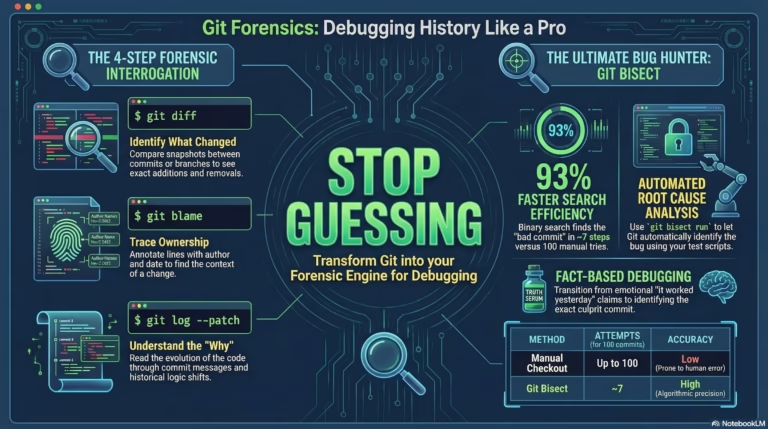
Something is broken. You don’t know which commit introduced it. You know it worked last week. There might be 200 commits between “worked” and “broken.”
git bisect runs a binary search through your history, cutting the search space in half at each step. 200 commits becomes 7–8 tests instead of 200.
git bisect start
git bisect bad                     # Current state is broken
git bisect good v2.1.0             # This tag was working
# Git checks out the midpoint commit
# Test your application...
# Working?
git bisect good
# Broken?
git bisect bad
# After 7-8 steps, Git identifies the exact commit:
# a3f8c9d is the first bad commit
git bisect reset  # Return to original state
If you have a test that can verify the bug automatically, bisect becomes even more powerful:
git bisect run php artisan test --filter=UserAuthTestGit checks out each midpoint, runs the test, and classifies it automatically. You can walk away and come back to the answer. This is how you debug a regression that crept in across a long sprint — not by reading every commit, but by letting Git find it for you.
Worktrees: Multiple Branches at Once Without Stashing
Here’s a scenario: you’re deep into a feature branch and need to check something on main — not just look at a file, but actually run the code. Normally you’d stash, switch, run, switch back, pop stash.
git worktree lets you check out a second branch into a separate folder, running both simultaneously:
# Check out main into a separate folder
git worktree add ../project-main main
# Now you have:
# /project              (your feature branch)
# /project-main         (main branch, fully checked out)
# Work in both simultaneously
cd ../project-main
php artisan serve --port=8001
# When done, remove the worktree
git worktree remove ../project-main
Each worktree shares the same .git folder — they’re not separate repositories. Changes committed in one worktree are immediately visible in the other. This is particularly useful for reviewing a colleague’s PR while staying on your own branch, or comparing behavior between branches in real-time.
Building a Git Workflow You Actually Trust
The developers who use Git most confidently aren’t the ones who know the most commands. They’re the ones who’ve built habits that mean they rarely need recovery procedures in the first place.
A few habits that, combined, create a workflow with almost no risk:
Commit often. Small, atomic commits are easier to revert, cherry-pick, and understand. A commit every 30–60 minutes of real work is not too often. It’s exactly right.
Branch before you start anything. Ten seconds. Every time. The habit that makes main always deployable.
Push your branches regularly. A branch that only exists on your laptop is lost if your laptop dies. Push feature branches daily even if they’re not ready to merge.
Check git status before destructive operations. Before reset --hard, clean -fd, or anything that might lose uncommitted changes, run git status. Take two seconds to read what you’d be throwing away.
Learn git reflog‘s address by heart. When something goes wrong, git reflog is almost always the first thing to check. It should be a reflex.
The Freedom That Comes From Understanding
The relationship most developers have with Git is one of cautious navigation — running commands that seem to work, avoiding the ones that seem dangerous, hoping nothing goes wrong.
The relationship you can have with Git is entirely different: active, confident, fearless. You run experiments knowing you can undo them. You rebase complex histories knowing you can restore the original with reflog. You delete branches knowing you can recover them from the object store. You reset commits knowing you can find them again.
That confidence changes how you work. You try bolder refactors because you know you can undo them. You explore unfamiliar parts of a codebase more freely because you can revert your exploration. You commit half-finished thoughts because you’ll clean them up before the PR.
Git was built to make working with code feel safe. Once you understand it — really understand it, not just the commands but the model — that’s exactly what it feels like.
The Complete Recovery Toolkit
# See every position HEAD has been at
git reflog
# Recover from a bad reset
git reset --hard HEAD@{N}
# Recover a deleted branch
git switch -c recovered-branch <hash-from-reflog>
# Undo a commit on shared branch (safe)
git revert HEAD
# Stash and restore work in progress
git stash push -m "description"
git stash pop
# Cherry-pick a specific commit
git cherry-pick <commit-hash>
# Binary search for a breaking commit
git bisect start
git bisect bad
git bisect good <known-good-hash>
git bisect run <test-command>
git bisect reset
# Run two branches simultaneously
git worktree add ../folder branch-name
git worktree remove ../folder
# Dry run before destructive operations
git clean -nd   # Preview what clean would delete
git reset --dry-run  # Not all Git versions support this; use status instead
← Part 4: Collaboration That Doesn’t Create Chaos | Back to the Series Hub →
If this was useful, I turned the whole series into a 23-page PDF reference — checklists, hook templates, 80+ commands, reflog & bisect deep-dives, and a recovery playbook for 12 real emergencies.




3 Comments