A Practical 101 Guide to Finding Bugs Using Git (Not Guessing)

You already know how to commit.
You already know how to push.
If you don’t, read:
- Commit Like a Pro: A Beginner’s Guide to Conventional Commits
- Practical Git & GitHub Setup for Real-World Projects
Those cover workflow.
This guide covers something far more valuable:
Using Git as a debugging engine.
When something breaks, professionals don’t guess.
They interrogate history.
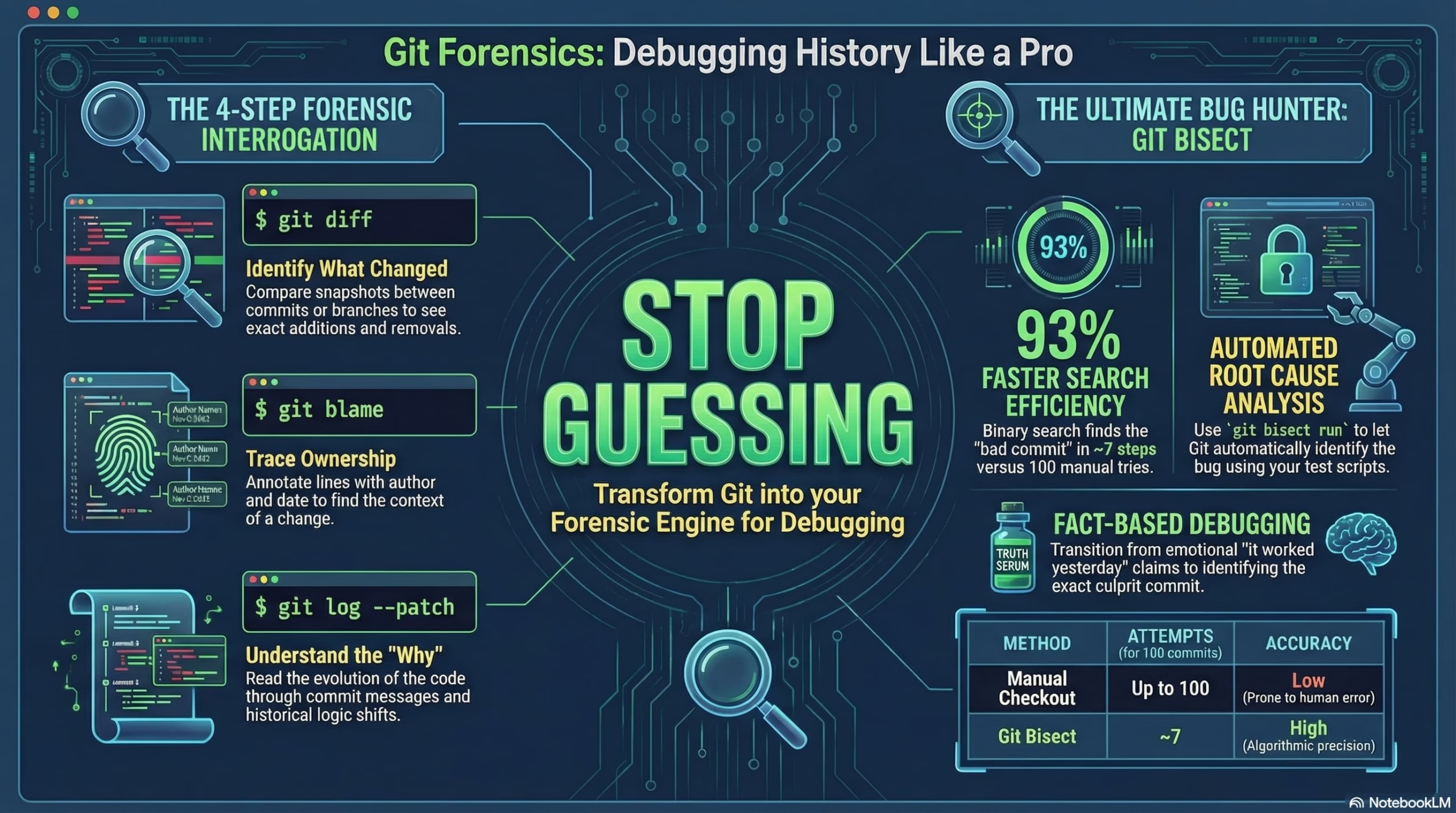
Every debugging situation reduces to four questions:
- What changed?
- Who touched this?
- Why was it changed?
- When did it break?
Master these, and you debug faster than 90% of developers.
1. What Changed? → git diff
If behavior changed, code changed.
git diff compares snapshots in your repository.
By default:
git diffCompares:
Working directory vs last committed snapshot (HEAD)
You’ll see:
- Added lines (
+) - Removed lines (
-) - Context around changes
Use This Before Every Commit
Most bugs start here:
“I didn’t realize that line changed.”
Compare Staged Changes
git diff --stagedShows what will go into the next commit.
This prevents accidental commits.
Compare Two Commits
git diff <commit1> <commit2>Example:
git diff v1.2.0 v1.3.0This is production debugging gold.
Instead of asking:
“What did we change?”
You see it.
Compare Branches
git diff main feature/refactorBefore merging, this is mandatory.
It tells you exactly what you’re introducing.
2. Who Touched This? → git blame
Once you find a suspicious line:
git blame path/to/file.phpGit annotates each line with:
- Commit hash
- Author
- Date
How it works:
Git traces each line backward to the last commit that modified it.
Use It Correctly
Ignore whitespace-only changes:
git blame -w file.phpOtherwise formatting commits mislead you.
What Blame Is (And Isn’t)
It shows:
Who last modified this line.
It does NOT show:
Who originally wrote the feature.
Use it to find context, not a person to attack.
Professional teams use blame to understand decisions, not to assign guilt.
3. Why Was It Changed? → git log --patch
Blame shows who.
To understand reasoning:
git log --patch -- path/to/file.phpThis walks backward through history and shows:
- Commit message
- Exact diff
- Context of change
You’ll see patterns:
- Business logic shifts
- Hotfixes
- Refactors
- Feature changes
This is how you read legacy code efficiently.
Instead of reading 2,000 lines blindly,
you read evolution.
4. When Did It Break? → git bisect
This is where most developers waste hours.
They manually checkout commits and guess.
Professionals use binary search.
What git bisect Does
It performs a binary search across commit history to find:
The first bad commit.
If there are 100 commits between good and bad state:
- Manual testing = up to 100 tries
- Binary search = about 7 tries
That’s exponential efficiency.
Real Scenario
“Search worked last week. Now broken.”
You know:
- Current commit = bad
- A commit from last week = good
Start:
git bisect startMark current state as bad:
git bisect badMark last working commit as good:
git bisect good <commit_hash>Git now:
- Calculates midpoint
- Checks out that commit
You test the app.
If broken:
git bisect badIf working:
git bisect goodEach step cuts the search space in half.
Eventually:
<commit_hash> is the first bad commitYou now know:
- The exact commit
- The exact change
- The exact author
- The exact timestamp
This removes emotion from debugging.
Automating Bisect (Even More Powerful)
If your project has tests:
git bisect run npm testGit will:
- Checkout commit
- Run test command
- Automatically classify good/bad
- Continue until culprit found
That’s automated root cause analysis.
Few developers use this.
Those who do, debug insanely fast.
Don’t Forget to Reset
git bisect resetAlways return to your original branch.
Professional Debugging Order
When something breaks:
1. Check your local changes
→ git diff
2. Compare releases
→ git diff <old> <new>
3. Inspect suspicious commits
→ git show <hash>
4. Trace line ownership
→ git blame
5. If still unclear
→ git bisect
Follow this order and you avoid chaos.
Real-World Applications
Production Bug With No Clear Owner
- Compare last working release and current
- Narrow to affected file
- Blame suspicious lines
- Inspect the commit
You now have facts, not assumptions.
Joining a Legacy Codebase
Instead of reading everything:
git log --patch -- critical_file.phpYou’ll see how rules evolved.
Git becomes your documentation.
“It Worked Yesterday”
This sentence is not emotional.
It’s a bisect case.
Let the algorithm search.
A Note on Tools (Optional but Helpful)
You can do everything from CLI.
But if you prefer visual diff tools, timelines, and easier bisect workflows, tools like Tower provide a polished Git interface.
If you want to try it, here’s the link:
https://www.git-tower.com/?via=shakil
Use tools for visibility.
But understand the commands first.
Final Shift in Thinking
Git is not just:
- A commit tool
- A push tool
- A GitHub bridge
Git is:
- A historical database
- A forensic timeline
- A binary-search debugger
- A safety net
Strong engineers don’t debug by staring at code.
They debug by asking:
When did reality change?
Git always knows.
Use it.



2 Comments